

ManageEngine ADManager Plus‘s Terminal Session Manager is a powerful Powershell cmdlet to identify and also manage multiple terminal sessions in a Domain, from a single point. This tool proves highly beneficial to IT administrators, as terminal sessions for multiple users across the Domain can be managed, disconnected or logged off from just a single console.
How to use this Terminal Session Management tool?
- Click on “Terminal Session Manager” from the Launcher to start the tool.
- Enter the Credentials: Domain, appropriate Username and Password (one that of domain administrator or an user with equivalent rights.
- Click on ‘Get Computers‘ button. Computers in the selected domain will be listed.
- Select the computers, whose “Terminal session” information you are seeking.
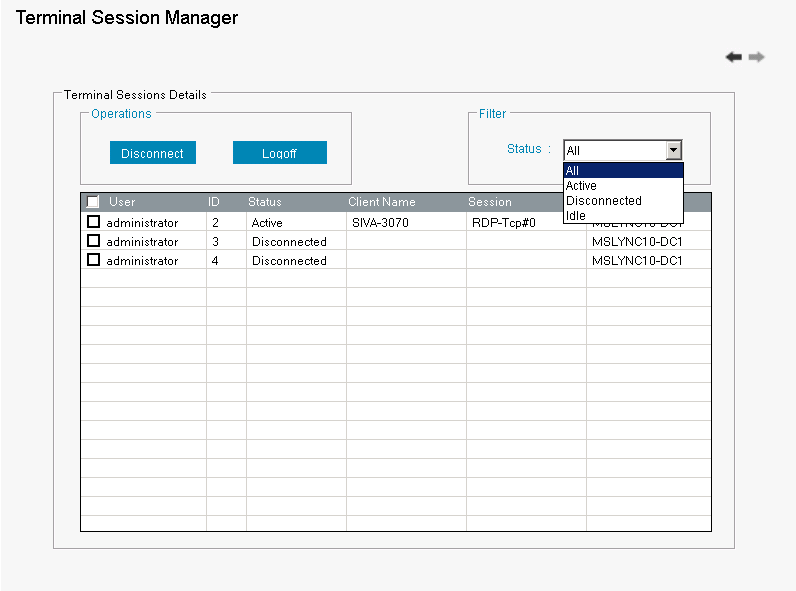
- Click on ‘Get Sessions‘ to get the Terminal Sessions of the selected Computers.
- Use the status filters (Dropdown) to get the list of all the ‘Active’, ‘Disconnected’ and ‘Idle’ sessions.
- To disconnect multiple Terminal Sessions, select the required Terminal Sessions and click on ‘Disconnect’.
- To Logoff multiple Terminal Sessions, select the required Terminal Sessions and click on ‘Log Off’.
If you work in an environment with users who frequently leave administrative sessions hanging (and this is most certainly not optimal) you can clean up the mess as needed with a few clicks.
Run ‘Terminal Session Manager’ using Powershell:
- The ‘Terminal Session Manager‘ can also be run as a PowerShell cmdlet by executing the below command on a command prompt.
- ‘add-PSSnapin ‘TerminalSessionManager’ followed by ‘Get-TerminalSessionManager’.

Why should you consider this Terminal Session Management tool?
- You can get a complete list of all active, disconnected or idle terminal sessions available on selected computer(s) in a domain, at any given moment, instantly.
- You get an enhanced search functionality that lists all the computers, in the Domain, that run a Terminal Session.
- You can disconnect or logoff terminal sessions with just a single click.
- Simple, easy-to-use, fast and the best part: Terminal Session Manager is 100% free.
How many times have you attempted to use the Windows RDP client to connect to a remote server, only to be informed that “the server has exceeded the maximum number of allowed connections.” — ManageEngine’s “Terminal Session Manager” will search your network for remote sessions and list them all, again in one viewable list.