


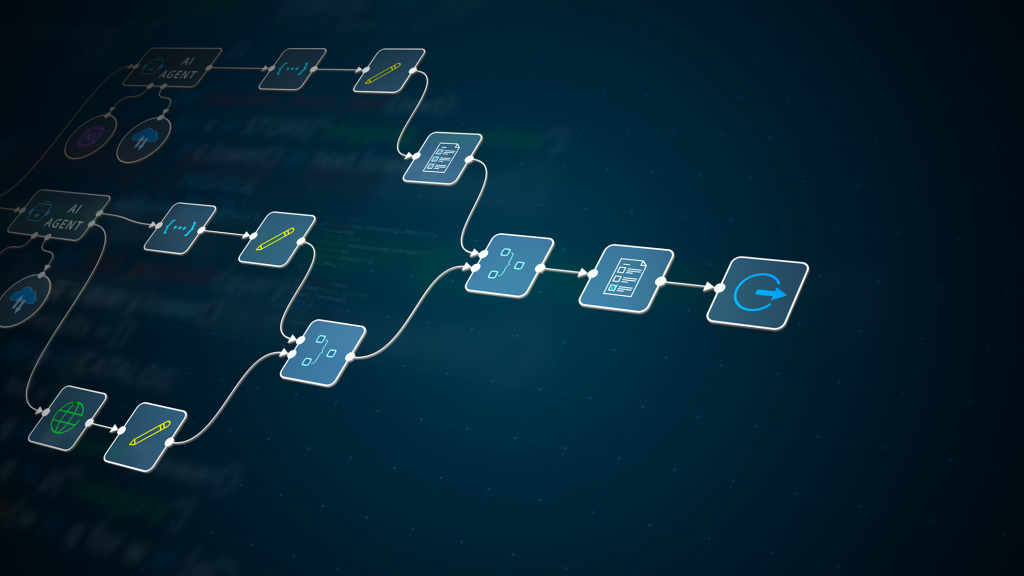
Automation is the difference between an identity platform that scales and one that collapses under its own operational weight.
In most environments, identity changes outpace everything else. Users join, move, leave. Devices enroll and retire. Applications appear, proliferate, and demand access. Compliance rules evolve. If each of these events requires a ticket and a human click path through the Entra admin center, the system becomes brittle and slow.
Creating automation workflows using Entra ID (formerly Azure AD) is about turning identity events into deterministic, policy-driven actions. It means expressing business intent—“every finance hire gets X, Y, Z; every contractor expires in 90 days; every risky sign-in triggers containment”—as code and platform rules rather than tribal knowledge.
This matters more than ever:
- Hybrid environments blend on-prem Active Directory and Entra ID.
- Zero Trust architectures require continuous evaluation, not one-time access grants.
- Cloud apps multiply faster than IT headcount.
- Regulators increasingly demand provable, repeatable controls.
In the broader Windows and Active Directory landscape, Entra ID automation is the cloud-era counterpart to Group Policy and PowerShell automation in on-prem AD. But the mechanics are different. Entra ID is API-first, event-driven, and policy-centric. Understanding those mechanics at a first-principles level is what separates “it works in the lab” from “it survives a 20,000-user enterprise.”
Let’s go deep.
What is automation in Entra ID, really?
At a high level, creating automation workflows using Entra ID means configuring the platform to automatically perform identity-related actions based on attributes, events, risk signals, or lifecycle changes.
In practical terms, this includes:
- Automatic group membership via dynamic groups.
- Lifecycle workflows for joiner-mover-leaver (JML) processes.
- Access reviews and entitlement management.
- Conditional Access policies reacting to risk.
- Provisioning users to SaaS apps via SCIM.
- Triggering external systems through Microsoft Graph API and webhooks.
A concise definition suitable for a featured snippet:
Creating automation workflows using Entra ID means using Entra ID’s policies, dynamic rules, lifecycle workflows, and Microsoft Graph APIs to automatically manage user identities, group memberships, access rights, and application provisioning based on defined conditions and events.
That’s the surface-level explanation. But it hides important realities:
- Entra ID automation is attribute-driven, not OU-driven.
- It relies heavily on eventual consistency and background processing.
- It is deeply dependent on the quality and governance of identity data.
- It is constrained by licensing tiers (e.g., Entra ID P1/P2).
In small tenants, admins often treat Entra ID as a UI tool. In large tenants, it becomes a rules engine and API platform.
Consider three environments:
- Small cloud-only startup (200 users): Manual group assignments may suffice initially. Dynamic groups may be used for licensing.
- Mid-sized hybrid enterprise (3,000 users, AD Connect): HR feeds drive attribute changes, dynamic groups control access, lifecycle workflows automate onboarding/offboarding.
- Large global enterprise (50,000+ users): Identity is event-driven. HR is the authoritative source. Entra ID acts as the policy enforcement layer. Everything is automated, logged, and reviewed.
The deeper your automation, the more you must understand Entra ID’s internal design assumptions.
First principles: how Entra ID automation actually works
To build robust automation workflows using Entra ID, you must internalize its core mechanisms.
1. Attribute-centric identity model
Unlike classic on-prem AD, where OUs and GPOs are central structuring elements, Entra ID automation is driven primarily by attributes:
departmentjobTitlecountryextensionAttributeXaccountEnabledemployeeHireDate- Custom security attributes (in advanced scenarios)
Dynamic groups evaluate rule expressions against these attributes.
For example:
(user.department -eq "Finance") and (user.accountEnabled -eq true)
This is evaluated asynchronously by Entra ID’s membership engine.
Design assumption: Attributes are authoritative and reliable.
If HR data is wrong, automation breaks silently.
2. Eventual consistency and background evaluation
Dynamic membership and lifecycle workflows are not instant.
Microsoft’s documentation states that dynamic group processing is asynchronous and can take minutes depending on tenant size and complexity. Large tenants may experience longer processing times during spikes.
This has architectural implications:
- Do not assume atomic, immediate access.
- Design onboarding processes with buffer windows.
- Test for race conditions (e.g., license assignment before group membership settles).
3. Policy evaluation model
Conditional Access (CA) evaluates policies at sign-in time. It is synchronous and risk-aware.
Dynamic groups and provisioning are evaluated in background cycles. Lifecycle workflows trigger based on events such as hire date or status change.
You must distinguish between:
- Provisioning-time automation (group membership, license assignment).
- Access-time enforcement (Conditional Access).
- Review-time governance (access reviews).
Each operates on different timelines and triggers.
4. Graph API as the control plane
Every UI action in Entra ID maps to Microsoft Graph API calls.
This is critical. Advanced automation workflows rely on:
POST /groupsPATCH /users/{id}GET /auditLogs- Webhooks and change notifications
Graph is the programmable backbone. Microsoft’s first-party documentation (Microsoft Graph docs) is authoritative here.
Automation maturity increases as you shift from manual configuration to Infrastructure-as-Code patterns using:
- PowerShell (Microsoft Graph PowerShell SDK)
- Azure CLI
- ARM/Bicep (for related Azure resources)
- CI/CD pipelines
Building a joiner-mover-leaver workflow in Entra ID
Let’s construct a realistic, production-grade automation workflow using Entra ID for a hybrid organization synced from on-prem AD via Entra Connect.
Scenario
- HR system is authoritative.
- On-prem AD remains for legacy apps.
- Entra ID is primary for Microsoft 365 and SaaS.
- Entra ID P2 is licensed.
- 5,000 users globally.
Goal:
- Automate onboarding (joiner).
- Automate access change on department move (mover).
- Automate secure offboarding (leaver).
We will use:
- HR → AD sync (via identity governance process).
- Entra Connect (now Microsoft Entra Connect Sync).
- Dynamic groups.
- Group-based licensing.
- Lifecycle Workflows (Entra ID Governance).
- Conditional Access.
- Access Reviews.
- Graph API for validation and reporting.
Step 1: Establish authoritative attributes
Before writing a single rule, define:
- Which system owns
department,jobTitle,manager,employeeHireDate,employeeLeaveDate. - Mapping from HR to AD.
- Mapping from AD to Entra ID.
In hybrid setups, Entra Connect synchronizes selected attributes. Ensure:
departmentcompanymanageraccountEnabled
are included in sync scope.
Validate with:
Get-MgUser -UserId user@domain.com | Select DisplayName, Department, Manager
If attributes are missing or inconsistent, stop. Automation depends on data integrity.
Step 2: Dynamic groups as the policy engine
Create dynamic groups in Entra ID:
Example: Finance Employees
Rule:
(user.department -eq "Finance") and (user.accountEnabled -eq true)
Example: US-based Contractors
(user.country -eq "United States") and (user.employeeType -eq "Contractor")
Avoid over-complex rules. Microsoft recommends limiting rule complexity because evaluation cost increases with nested expressions and multiple attributes.
Test membership using the “Validate rules” feature in the Entra portal before saving.
Production best practice:
- One logical function per group.
- Avoid giant “catch-all” dynamic rules.
- Use naming convention:
DG-Finance-Users,DG-US-Contractors.
Step 3: Group-based licensing
Assign Microsoft 365 licenses to dynamic groups.
Instead of assigning E5 per user, assign to:
DG-All-EmployeesDG-Finance-Users
This ensures license follows attribute.
Be aware:
- License assignment failures occur if prerequisites (like usage location) are missing.
- Monitor
Provisioning errorsin Entra admin center.
Default behavior:
- License assignment attempts automatically.
- Failures require manual remediation.
Production-grade behavior:
- Periodic Graph API report for failed license assignments.
- Alerting integrated with monitoring system.
Step 4: Lifecycle Workflows (Joiner)
Using Entra ID Governance, create a Joiner workflow:
Trigger condition:
employeeHireDateequals current date.accountEnabled = true.
Tasks:
- Add user to onboarding group (if not already dynamic).
- Send welcome email.
- Assign access package (if using Entitlement Management).
- Notify manager.
Critical detail:
Lifecycle workflows evaluate based on attribute values and can run at scheduled intervals. They are not real-time triggers.
Edge case:
If employeeHireDate is set incorrectly or retroactively changed, workflow may not trigger.
Mitigation:
- Periodic “catch-up” workflows for past hire dates.
- Reporting for users without onboarding marker group.
Step 5: Mover logic via dynamic groups
Department change in HR → updates AD → sync to Entra ID → dynamic membership recalculated.
Result:
- User automatically leaves
DG-Finance-Users. - User joins
DG-Marketing-Users.
This change cascades:
- License adjustments (if different).
- App access via group-based assignments.
- Access reviews scoped to new group.
Key risk:
Access lag due to dynamic evaluation delay.
Mitigation:
- Avoid immediate high-risk resource dependency on dynamic update.
- Use Conditional Access to gate critical systems until membership confirmed.
Step 6: Leaver workflow
Two phases:
- Disable account (
accountEnabled = false). - Set
employeeLeaveDate.
Lifecycle workflow for leavers:
- Remove from all non-essential groups.
- Convert mailbox to shared.
- Remove licenses.
- Notify manager.
- Trigger archival process.
Important nuance:
If AD disables account first and Entra Connect syncs, dynamic group rules using accountEnabled = true will auto-remove membership.
This is desirable.
However, ensure:
- Conditional Access blocks sign-in when
accountEnabled = false. - No legacy protocols bypass this.
Step 7: Validation and rollback strategy
Validation checks:
- Test user in pilot OU.
- Force delta sync (
Start-ADSyncSyncCycle -PolicyType Delta). - Confirm dynamic membership.
- Confirm license assignment.
- Check audit logs via:
Get-MgAuditLogDirectoryAudit -Filter "activityDisplayName eq 'Add member to group'"
Rollback strategy:
- Maintain static “Emergency-Access” group.
- Document break-glass accounts excluded from Conditional Access.
- For faulty dynamic rule, revert to previous version (export rule expressions before changes).
Never edit production dynamic rule without:
- Copying current rule.
- Testing new logic in staging group.
- Validating membership delta count.
Default vs hardened production posture
| Area | Default | Production-grade |
|---|---|---|
| Attribute governance | Informal | HR as authoritative, mapped and validated |
| Dynamic rules | Complex, ad hoc | Modular, single-responsibility rules |
| License monitoring | Reactive | Automated Graph-based reporting |
| Lifecycle workflows | Basic | With exception handling + reporting |
| Logging | UI checks | Centralized log ingestion (e.g., Sentinel) |
| Rollback | None | Documented and tested rollback paths |
Automation is powerful, but brittle without guardrails.
Further drill-down:
1. What is the practical upper limit for dynamic groups?
Microsoft does not publish a strict tenant-wide hard limit, but evaluation time increases with rule complexity and tenant size. Large tenants (100k+ users) must simplify rules. Excessive dynamic groups can strain processing cycles.
2. Are dynamic group updates real-time?
No. Membership updates are asynchronous. Processing time depends on tenant size and system load.
3. What happens if HR retroactively changes a hire date?
Lifecycle workflows may not trigger if conditions were previously unmet. You need periodic evaluation workflows to catch missed cases.
4. Can Conditional Access replace dynamic groups?
No. Conditional Access governs sign-in conditions. It does not assign licenses or group membership.
5. What breaks if Entra Connect fails?
Attribute changes stop syncing. Dynamic rules based on those attributes stop reflecting reality. Cloud-only attributes remain unaffected.
6. What is the security risk of overusing dynamic groups?
Privilege escalation via attribute manipulation. If department controls admin access, and HR or upstream system is compromised, attacker gains rights automatically.
7. How do you protect against attribute-based privilege escalation?
- Limit high-privilege group membership from dynamic rules.
- Use Privileged Identity Management (PIM).
- Monitor attribute changes in audit logs.
8. What’s the consistency model for group-based licensing?
Assignment is eventual. Failure states must be monitored explicitly.
9. Can you nest dynamic groups?
No direct dynamic-to-dynamic nesting. But dynamic groups can be members of static groups. Complex nesting increases cognitive load.
10. What is the safest offboarding sequence?
- Disable account.
- Remove privileged roles.
- Block sign-in.
- Remove licenses.
- Archive data.
- Delete account after retention.
Misunderstandings, traps, and correctives
Misconception: “Dynamic groups simplify everything.”
They simplify assignment but increase dependence on attribute integrity.
Corrective: Audit attribute change sources and restrict who can edit them.
Misconception: “Automation reduces security risk.”
It reduces human error but amplifies systemic errors.
Corrective: Treat automation changes like code deployments.
Misconception: “Lifecycle workflows are real-time.”
They are scheduled and condition-based.
Corrective: Document trigger timing and expected latency.
Expert essentials checklist
- HR is authoritative; AD is not manually edited.
- No highly privileged roles assigned via loose dynamic rules.
- All dynamic rule changes are peer-reviewed.
- Graph-based reporting in place.
- Break-glass accounts documented and tested.
- Offboarding process tested quarterly.
Applications, architecture choices, and the road ahead
High-value use cases:
- Zero Trust enforcement with Conditional Access.
- Automated SaaS provisioning via SCIM.
- Compliance-driven access reviews.
- Time-bound contractor access using access packages.
Architectural patterns:
- Hybrid authoritative model: HR → AD → Entra ID.
- Cloud-first model: HR → Entra ID (no on-prem dependency).
- Multi-forest sync model: Consolidate into one Entra tenant with scoped dynamic logic.
Anti-patterns:
- Encoding business logic into OU structure instead of attributes.
- Overloading one dynamic group with multiple business conditions.
- Granting admin roles via attribute-only dynamic rules.
Looking forward:
- Deeper integration with risk signals (Entra ID Protection).
- More event-driven triggers.
- Expansion of custom security attributes.
- Stronger alignment with Zero Trust and just-in-time access.
Over the next 3–7 years:
- Manual group management will be considered legacy.
- Identity-as-code pipelines will become standard.
- Tenants without attribute governance will struggle.
To hedge against future rework:
- Design modular dynamic groups.
- Separate identity data governance from access logic.
- Invest in monitoring and reporting early.
Conclusion: automation as identity architecture
Creating automation workflows using Entra ID is not a feature toggle. It is an architectural choice.
Done correctly, it delivers:
- Scalability.
- Consistency.
- Security alignment.
- Auditability.
Done carelessly, it creates invisible privilege paths and brittle dependencies.
Key takeaways
- Dynamic groups are attribute-driven queries.
- Automation depends on upstream data integrity.
- Conditional Access and lifecycle workflows operate on different timelines.
- Graph API is the programmable backbone.
- Treat automation rules as production code.
If you’re building or modernizing your identity architecture, explore deep dives on:
- Hybrid identity with Entra Connect.
- Conditional Access design patterns.
- Privileged Identity Management best practices.
- Active Directory group design strategies.
FAQ
1. What are dynamic groups in Entra ID?
Dynamic groups automatically assign membership based on attribute-based rules evaluated by Entra ID.
2. Are Entra ID automation workflows real-time?
Most membership and lifecycle workflows are asynchronous and evaluated in the background.
3. Can Conditional Access automate license assignment?
No. Conditional Access governs sign-in conditions, not license or group assignments.
4. What is the biggest risk in Entra ID automation?
Attribute-based privilege escalation due to poor data governance.
5. How do you validate automation in Entra ID?
Use Microsoft Graph API, audit logs, pilot users, and staged rollouts to verify behavior before full deployment.